Index
Main Page
People
Sentences
Names
Families and Children
- For people with multiple spouses, how does Second Site determine the sequence of the family sections?
- Marriage events are showing up twice in the person page entry. How do I prevent that?
Sources
Exhibits
- Why do my exhibits show up in TMG, but not in Second Site?
- How do I make my image exhibits smaller?
- Why won't Second Site show my TIFF image exhibit on the page?
- Why do some images show up in an Exhibit Gallery more than once?
- I have several people with primary images where the image is linked from the person page entry even though the other primary images are embedded. I verified that the exhibits are primary. The name index entry shows the primary exhibit icon. Why is the image linked and not embedded?
- I have several people with primary images where the image isn't showing. The images are JPGs (or GIFs, or PNGs) and the exhibits are primary. Why don't they appear?
- I would like to exclude some exhibits, but I don't want to exclude them all. How can I do that?
- How can I control the alignment of embedded exhibits? I want most exhibits to float left and have the text flow around it to the right, but I'd like to center some exhibits and have others float right.
Places and Place Exhibits
Styles
- In Second Site styles, what does "inherit" mean? Inherit from what?
- How do I use a background color rather than a background image?
- How do I change the text color or other attributes of links?
- How do I control the color of link text in charts when I am using the Accent feature?
- How do I add a line between person page entries?
- How do I add a graphic border between person page entries?
Customizations
- How do I add content to the main page of my site?
- How do I add "previous" and "next" links to Person Pages and/or Source Pages? Can I use graphic files for the "previous" and "next" buttons?
- How do I add music to my web page(s)?
User Items
- How come my Calendar (or Map or Picture) User Item does not appear on my site?
- I made the site and there were no errors, but the Browse Site command is disabled. Why?
Security
Miscellaneous
- Can I use Second Site on multiple PCs?
- How do I transfer Second Site to another PC?
- I have lost my registration information and I need it to reinstall Second Site. Where can I get it? Do I have to buy a new license?
- I purchased Second Site a few minutes ago but I didn't get a serial number. How do I get it, and when?
- How come my site doesn't match my data?
- How do I verify that Second Site is using the same project as TMG?
- How come I see question marks or other symbols where I expect to see spaces?
- What's the difference between the -i and -o folders?
- When I start Second Site, the main window is not visible. How do I make the window appear?
Errors and Error Messages
- Why do I get the message "Error 76 from SecondSite [LOC=11], Path not found" when I open an existing SDF file or try to make a new SDF file?
- Why do I get the message "Not a Correct Index File" when I use the [Set Database...] button?
- Why do I get an "out of memory" error message when trying to make my site? Does my PC need more memory?
- Why do I get the message "More than two primary parents" in the Log when I make a site?
- Why do I get the message "Possible variable reference "[text]" ..." in the Log when I make a site?
- Why do I get the message "Error 70 from Second Site [LOC=nn], Permission denied" when I make a site?
- Why do I get the message "Role role name not found for event event name" in the log when I make my site?
- Why do the Tag Type lists in Second Site include Tag Type Labels I don't recognize, values that are not the same as in TMG?
- When I click the "Browse Site" button, my site does not open in my default browser, it opens in some other browser or application. Why?
- Why does Internet Explorer issue a warning message when I browse the local copy of my web site?
- Why do I get an error message that says MSXML 6.0 is not installed or not working?
Questions and Answers
Main Page
How do I add text to the main page?
You edit the Main Page User Item in the User Items list. The Main Page item is a Custom Page that Second Site adds to all new SDF files.
How do I add a link to a specific person to the main page?
There are several ways to add links to people on Custom Pages, including the Main page.
The easiest way is to add a Person Link User Item as a child item of the main Page.
For the most control over the placement of the link, see the Page.PersonHREF page which explains how to create links to people in Custom Page content.
People
How do I restrict my site to a subset of my TMG data?
Please see the Filters page which explains the People.Exclude Living property and the Flag Filter capability.
How come my site doesn't have everyone in it?
The most common cause of missing people is an incorrect Living flag value for those people in the TMG project.
If the People.Exclude Living property is checked, which is the default value, Second Site will exclude people whose TMG Living flag is set to "Y" or "?". Please note that in both TMG and Second Site, the sole determinant of whether someone is living or not is the Living flag. If it is set to "N", the person is not living. If it is set to "Y" or "?", the person is considered alive.
In some cases, and especially after importing data from another program, the Living flag may not be set properly for all the people in your TMG project. Check the Living flag for one of the people who is missing. Is it set properly? If not, you may want to consider using the Set Living=N feature in my TMG Utility program which can help you find people with Living=? that should have Living=N.
Sentences
How come the output from a TMG sentence doesn't look right in Second Site? It looks right in TMG.
Second Site will interpret the sentences in your TMG project using the same rules as TMG. There are a few rare exceptions that involve the inclusion or omission of spaces and it is easy to fix the sentence so that the revised sentence produces the exact same output in TMG and SS.
If you see big differences between TMG and SS, one of these three reasons is the likely cause:
- You are not using the same project in SS as in TMG.
This usually happens to people after they upgrade TMG or change the name or location of their TMG project for some other reason. They forget to update the SDF file to use the new version of the project.
- You have changed the sentence in language "A" in TMG but are using language "B" in SS.
This often happens to users from the UK and is the result of the Second Site property Data.Language.Sentence Language being set to "English (U.S.)" rather than to "English (UK)". That, in turn, is the result of accepting "English (U.S.) - Standard" in the "Set Default Values" window when creating the SDF file via File > New command. The proper choice for user from the UK is usually "English (UK) - Standard".
The problem is not exclusive to UK users; the problem can occur whenever there is a mismatch between the language used in TMG to define the sentence and the language SS is told to use to create the site.
Note that Data.Language.Site Language does not affect which sentence is used.
- The web site does not include all people (living people are excluded, for example).
If a sentence has unconditional references to witnesses or principals who are excluded, those references will insert "an unknown person" (or the equivalent in other languages) into the output.
If a witness is excluded in SS, and the reference to the witness is conditional, the TMG output will show the name of the witness but the SS output will not. That is by design. See the Showing Excluded People topic.
Names
How come married names are not showing up in the name index?
If the Database.Primary Tags Only is checked, then only primary names will be included in the index. For a more in-depth discussion of how names are handled by Second Site, see the Names section.
Families and Children
For people with multiple spouses, how does Second Site determine the sequence of the family sections?
Families are sorted according to the earliest date using these data sources:
- Family Section Note sort date for the couple, if any
- Marriage sort date for the couple, if any
- Earliest primary birth sort date for children of the couple, if any
The data sources above are listed in priority order. Second Site will use the Family Section Note sort date if there is one. Failing that, Second Site will use the sort date from the couple's primary Marriage Group event. If neither of those sort dates are available, Second Site will use the earliest sort date from the primary Birth Group event for the couple's shared children.
Marriage events are showing up twice in the person page entry. How do I prevent that?
See the Family Sections.Repeat Marriage Tags property; set it to Never if you do not want marriage events repeated in the Family Section.
Sources
Why do I see "unknown CD" on source pages? The CD value is not empty.
Source page entries apply to all citations to a source, and there is no specific citation detail in context when Second Site writes the Source page entry. This is similar to a bibliography entry.
To prevent the "unknown CD" message, update the source template to make the CD reference(s) conditional.
Exhibits
Why do my exhibits show up in TMG, but not in Second Site?
- Second Site only supports external exhibits for images, audio, and video. If the exhibit is internal, Second Site won't show it. Second Site does support both internal and external text exhibits.
- If People.Suppress Detail for Living People is set, Second Site will not include exhibits for living people.
- For external images exhibits, don't be misled by TMG's thumbnail images. If TMG shows the thumbnail image in the exhibit log, that doesn't necessarily mean it knows the location of the external exhibit. Please confirm that you can open the exhibit in TMG. If you can't, then Second Site won't include the exhibit in your site.
- My TMG Utility program includes the Verify Exhibit Paths feature to help you diagnose exhibit path problems.
How do I make my image exhibits smaller?
Large image exhibits are usually the result of using high-resolution images as exhibits. Digital images are essentially thousands of very small dots of colors where each dot is called a pixel. A high-resolution image has many pixels, and a high pixels-per-inch (PPI, or DPI for dots-per-inch) setting. The more pixels per inch, the clearer and sharper the printed image.
High-resolution images are good for printing. A photo designed to print 3" x 3" might be stored as 300 DPI or higher. The printing application and the printer driver will combine to pack 300 pixels into an inch, and so the image will print at the intended size.
When that same image is displayed on a monitor using a web browser, the high-resolution causes a problem. The monitor has a fixed resolution that is much lower than the image's resolution. Desktop monitors are usually about 100 DPI, with other resolutions for tablets, smart phones, etc. The 900 by 900 pixel image can be printed at 3" x 3", but on a desktop monitor it will be 9" x 9" or larger.
The web browser can resize the image down to 3" x 3", but browsers don't resize images as well as image editing software. Also, for the browser to resize the image, the user pays the price (in time) of downloading the large image but only sees the image quality of the scaled down version. As a result, Second Site does not create HTML that will resize images automatically. Second Site has a special feature to enable you to store high-resolution images as exhibits, but use lower-resolution versions for your site. See the description of the Alternate Image Folder. TMG Utility can help you create the lower-resolution images. See the Export Images feature. That page has specific directions for how to make lower-resolution images for use with Second Site.
For images of people, such as a "head shot" that you attach as the primary person exhibit, I suggest you make the image 200 pixels by 300 pixels. The dimensions don't have to be exact. 200 pixels wide leaves some room for text to flow to the right of the image. 300 pixels long gives the picture a nice aspect ratio (the relative length of the width to the height) that resembles a formal portrait.
For more information about exhibits, see the Exhibits section.
Why won't Second Site show my TIFF image exhibit on the page?
Web browsers will only allow certain types of images to be included on an HTML page. Browsers can be configured or extended to support more images types, but by default browsers support JPG, GIF, and PNG images. If you attempt to embed an image that is not one of those types, Second Site will link the image instead. When the user clicks the link, the browser will show the image or ask the operating system to show the image using some application installed on the user's PC.
Why do some images show up in an Exhibit Gallery more than once?
The Exhibit Gallery is a list of exhibits, not images. If two exhibits in your TMG project refer to the same image, both exhibits might be included in an Exhibit Gallery depending on the Exhibit Gallery options.
I have several people with primary images where the image is linked from the person page entry even though the other primary images are embedded. I verified that the exhibits are primary. The name index entry shows the primary exhibit icon. Why is the image linked and not embedded?
The primary image exhibit is probably not a JPG, GIF, or PNG image. Web browsers will only allow certain types of images to be included on an HTML page. See the answer to the TIFF question above.
I have several people with primary images where the image isn't showing. The images are JPGs (or GIFs, or PNGs) and the exhibits are primary. Why don't they appear?
If the person is living (Living flag="Y" or ">"), and Limit Details for Living People is checked, primary image exhibits are suppressed by default. You can include the image by changing the Show Primary Image entry in the Detail Filters panel in the People Section.
I would like to exclude some exhibits, but I don't want to exclude them all. How can I do that?
You can use Exhibit Codes to force Second Site to ignore specific exhibits.
How can I control the alignment of embedded exhibits? I want most exhibits to float left and have the text flow around it to the right, but I'd like to center some exhibits and have others float right.
You can use Exhibit Codes to control the alignment of embedded exhibits.
Places and Place Exhibits
How do I use Place Comments and Place Exhibits?
The simplest way to start is to add a comment to a place. In TMG, edit the place from the Master Place List (MPL) and add a comment. Make sure the place you modify is included in your site. The actual, specific place must be used by an event that appears on the site.
In the Place Index section of SS, make sure the Place Index is enabled. Also make sure that "Show Place Information" is checked. To make things easier, check "Only Places with Information". That will reduce the clutter and allow you to see the place exhibits more clearly. You can turn it off after you know it is working. Then build the site.
Browse to the master place index, and then navigate to the place index entry for the specific place. If you checked "Only Places with Information" then there will only be one (or possibly a few) places in the index. You should see an "i" (information) icon.
Once you get a place comment working, you can move on to using actual exhibits. Don't add any HTML to the place comment or anywhere else. Just attach an image exhibit to the place. Enter a caption for the image. Then rebuild the site. Click the "i" icon again and you should see the comment and the image.
Styles
In Second Site styles, what does "inherit" mean? Inherit from what?
When a style property is set to "inherit", Second Site does not include the attribute definition in the stylesheet. When an attribute is omitted in CSS, the value is inherited from the parent HTML element, which is usually the element that visually surrounds it or precedes it. For example, if a name is included in a paragraph of text, and there is a style associated with the name, setting font-family to "Inherit" will set the font-family to the same value as the surrounding paragraph text.
How do I use a background color rather than a background image?
The answer depends on which background you want to set. In some Layouts, a page background and a "container" background are visible. The container is smaller, and in fixed width Layouts, it will be slightly wider than the text.
To change the page background set the Theme.Colors, Backgrounds.page-background-image property to "none" and the Theme.Colors, Backgrounds.page-background-color property to the color you desire.
To change the container background set the Theme.Colors, Backgrounds.container-background-image property to "none" and the Theme.Colors, Backgrounds.container-background-color property to the color you desire.
For information about the HTML elements Second Site uses to construct pages, see HTML Page Structure.
How do I change the text color or other attributes of links?
Links can be styled via stylesheet parameters. The Theme determines the initial colors, but users can customize those values. In the Theme Section, Colors, Backgrounds sub-section, set the link-related text colors as desired. Other characteristics of links can be set via Link-related styles in the System section.
How do I control the color of link text in charts when I am using the Accent feature?
When using the Chart Accent feature, certain chart boxes will be assigned a custom background color. By default, the text color for both regular text and links uses the same color as text in other boxes in the chart. The default text colors may not provide enough contrast to the background color, so you may need to use black text (on a light background) or white text (on a dark background) to make the text legible.
You configure User Styles to control the text color. The basic model is described below. You'll need one User Style for each Accent where you want to control the color of the link text. The "selector" part of the User Style is quite long, and is shown on multiple lines below. Do not press enter when specifying the value, however, and remove any carriage returns if you copy/paste the value into the selector-n textbox. Note that selector-n is a placeholder; the actual value will be selector-1, selector-2, etc. See the User Styles page to learn about how to specify User Styles.
selector-1:
div.accent1, div.accent1 a:link, div.accent1 a:visited,
    div.accent1 a:hover, div.accent1 a:active
parameters-1:
color: #000 !important
The color: #000 !important statement above sets the text color to black. Change "#000" to "#fff" for white, or use another color value for the color of your choice.
Change "accent1" to "accent2" in the selector to create a User Style that modifies the colors of Accent 2, and so forth.
How do I add a line between person page entries?
Each person page entry is enclosed by an HTML element called the "Person Page Enclosure". It has a CSS class assigned to it and you can adjust that class via the Stylesheets.System.Person Pages.Person Enclosure section. To add a line between people, you can add a bottom border to the Person Page Enclosure.
- Start Second Site, open your SDF file, go to the Stylesheets.System.Person Pages.Person Enclosure section.
- In the "other" textbox, paste this text:
border-bottom: 1px solid #606060;
That CSS statement adds a bottom border to the Person Page Enclosure. Adjust the color, which is "#606060" above, to a suitable value for the Theme.
- Press [F2] to execute the "Make Styles" command so SS will rebuild the stylesheet for the site. Then open the site in your browser. You should see the line at the bottom of each person page entry. If you do not see it, then refresh the page in your browser.
The same basic technique should work for any Theme unless the Theme uses the bottom border of the Person Page Enclosure. Formats may interfere with this process if they add styled elements to the person page entry.
How do I add a graphic border between person page entries?
Each person page entry is enclosed by an HTML element called the "Person Page Enclosure". It has a CSS class assigned to it and you can adjust that class via the Stylesheets.System.Person Page Enclosure section. To add a graphic line between people, you can add a background image at the bottom of the Person Enclosure so it will appear to follow the person page entry.
The "Carla's ..." Themes, "Carla's Family History" for example, all include a graphic line you can use for this purpose. The instructions below are specific to the Carla's Family History Theme, but you can use the same basic approach for any of the "Carla's ..." Themes, and if you supply the "line.jpg" graphic, you can use it with any Theme.
- Open SS and go to the Stylesheets.System.Person Enclosure section.
- Change the "padding-bottom" value to "40px". That will make some space at the bottom for the image. (Adjust the padding amount based on the height of the line graphic.)
- Make sure that the "background-image" textbox is set to "Inherit". We can't use the background-image property because that's for a simple, repeating background image and we need to set some other properties of the image.
- In the "other" textbox, paste this text:
background: url("line.jpg") center bottom no-repeat;
That CSS statement assigns the line.jpg graphic as a background image. The image is centered on the bottom, and the image will not repeat.
- Press [F2] to execute the "Make Styles" command so SS will rebuild the stylesheet for the site. Then open the site in your browser. You should see the line at the bottom of each person page entry. If you do not see it, then refresh the page in your browser.
The same basic technique will work for any Theme unless the Theme uses the background image of the Person Page Enclosure for some other purpose. At the time of this writing, no Themes assign a background image to the Person Page Enclosure, but that could change as new Themes are introduced. Formats may interfere with this process if they add styled elements to the person page entry.
Customizations
How do I add content to the main page of my site?
You can add content to the main page via the Main Page.Extra Content property. Any text you add there will appear on the main page of the site. Use HTML to make paragraphs, format text, etc.
How do I add "previous" and "next" links to Person Pages and/or Source Pages? Can I use graphic files for the "previous" and "next" buttons?
By default, the "previous" and "next" buttons are disabled on those pages. You can enable them on Person Pages by enabling the Layouts.Person Pages.Include Prev/Next Links. Similarly, you can enable them on Source Pages by enabling the Layouts.Source Pages.Include Prev/Next Links.
To use graphic files for the "previous" and "next" buttons, follow these steps:
- Set Styles.Button Images to "Use available images"; this enables graphic buttons in general.
- Make sure you put an image file for each button in your Input (-i) folder. The image files should be named "previous.jpg" and "next.jpg". You can use JPG, GIF, or PNG files. If you do use GIF or PNG, adjust the file extension to match the filetype.
Note that the "next" button will appear even if you can't go forward and the "previous" button will appear even if you can't go back. When the site does not use graphic files for the buttons, the button is shown in a disabled state, but Second Site doesn't support a disabled state for graphic buttons.
How do I add music to my web page(s)?
The first question you should ask yourself is whether you should add music to your web pages. Many people who visit your site will not appreciate it.
If you are certain you want to add music, here's one way to do so. It uses the Main Page.Extra Content property and the non-standard EMBED tag but should work in most browsers. The music will only play on the main page, but you can extend the idea to work with any page by putting the HTML in a different static content property.
User Items
How come my Calendar (or Map or Picture) User Item does not appear on my site?
Some User Items do not create a complete HTML page. They create a portion of a page and are designed to be placed on Custom Pages where they can be combined with other User Items. These User Items are called Content Items and include the Calendar, DNA, Heading, Icon Description, List Type, Map, Picture, Slideshow, Table Row, and Text User Items.
If you add a Content Item to your site, and you do not place the item on a Custom Page, the item will not appear on the site.
See the Custom Page User Item page and the Maps, Calendars, and Custom Pages article in Second Site News #038 for instructions on how to add Content Items to a site.
I made the site and there were no errors, but the Browse Site command is disabled. Why?
The Browse Site command is enabled when the Output (-o) folder includes a file named "index.htm". If you disable or delete the User Item that creates that file, then the Browse Site command will not work. There are circumstances where you may not want to create an "index.htm" page, but in those cases you will have to start the browser and open another page manually.
Security
How do I password protect my site?
You can password protect your site, but the method is determined by your web hosting service. Generally, the web hosting service will support some means of assigning a password to a folder, and you store the web pages produced by Second Site in that folder.
Miscellaneous
Can I use Second Site on multiple PCs?
You may install Second Site on multiple PCs, but only one copy may be in use at a time. The pertinent part of the End-User License Agreement is as follows:
You may use this product on a single computer. For your convenience, you may install the licensed copy of the product on no more than three (3) computers (e.g., home, office, laptop) for your exclusive use or that of immediate family members who live in the same household as the licensee, provided that no two of those computers shall ever operate the software at the same time.
How do I transfer Second Site to another PC?
See the instructions on the Transfer Second Site to a New PC page.
I have lost my registration information and I need it to reinstall Second Site. Where can I get it? Do I have to buy a new license?
No, you do not have to buy a new license.
- If you have lost your Second Site 3 or higher registration information and you need to reinstall Second Site, contact me and I will send you the information again.
- If you have lost your Second Site 2 or Second Site 1 registration information and you need to reinstall Second Site, you must contact support@whollygenes.com. Wholly Genes was the retailer for Second Site 2 and Second Site 1, and out of concern for customer privacy, they did not share that information with me.
I purchased Second Site a few minutes ago but I didn't get a serial number. How do I get it, and when?
Serial numbers are sent to you via email after you purchase the software license. Serial number assignment is a manual process and there may be a 24 hour delay between when you purchase and when the license information is sent to you. In most cases, the serial number is sent shortly after the order is received.
If you have been waiting more than 24 hours, please check your junk mail folder to see if the registration information message has been placed there by your email client. If you do not receive any messages after you place your order, you may have entered the wrong email address. Contact me and I will check that for you.
How come my site doesn't match my data?
Make sure that your Second Site project is using the proper TMG project. This is a fairly common mistake. People occasionally copy a TMG project and then start modifying the copy. Later, they re-open a Second Site project that uses the original TMG project and wonder why a newly-built site doesn't reflect the recent changes. The solution is to change the Second Site project to use the correct TMG project via the Set Database... button in the Data.Database section.
If you are certain that the TMG project setting is correct, the other possibility is that your browser is showing you old versions of the site pages. Browsers use cached (previously saved) versions of web pages under certain conditions. You can force the browser to reload the page by pressing [F5].
How do I verify that Second Site is using the same project as TMG?
- With TMG closed, start Second Site and open your SDF file. SS shows the path to the TMG project and then the dataset name underneath it. You can select the project path text and copy it. Copy the text and paste it into a text editor like Notepad.
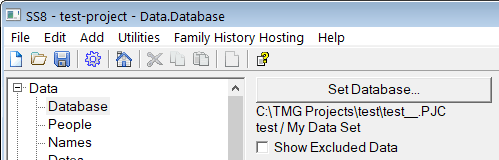
TMG Project Path in Second Site - Close Second Site.
- Start TMG and open the TMG project.
- Use the File > Preferences command to open the preferences window. You will see the project path in the top panel on the right.
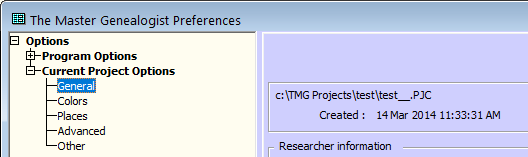
TMG Project Path in TMG - Carefully compare the two paths (the path shown in TMG preferences and the path shown in your text editor document) to verify they are the same.
How come I see question marks or other symbols where I expect to see spaces?
This is a complicated issue.
Web browsers are supposed to honor the ASCII and Unicode non-breaking space character. In both ASCII and Unicode, the non-breaking space character has the numeric value 160. You can specify the character 3 different ways.
- You can use the
entity. - You can use the
 entity. - You can put the character value 160 in the text file using a text editor that allows you to do so.
When HTML authors want a non-breaking space in a document, they will typically use method #1 or method #2. When XML or XHTML authors want a non-breaking space, they will typically use method #2. When an XSLT Stylesheet is part of the page-writing process, the page author will typically use method #2, but the   entity will be transformed into a single character, and so when there is an XSLT Stylesheet involved, the result is identical to method #3.
There seems to be a problem using method #3 with specific configurations of the Apache Web Server. If the web server has been configured to add a default ContentType response header, and the charset is set to utf-8, some web browsers will not correctly interpret character value 160 as a non-breaking space.
(See the Apache documentation on the adddefaultcharset directive)
It is only appropriate to set the default charset to utf-8 if the files being served are actually Unicode files in the utf-8 subformat. In most cases, the files being served are not utf-8 files. Still, I am not sure whether the web server or the browser is to blame.
If you ask your web site host to remove the directive for your site they should do it. If they cannot or will not change the directive, you can use the Language.HTML Character Set property to tell Second Site to write utf-8 files.
What's the difference between the -i and -o folders?
The Input (-i) Folder is a staging area. Various actions you take using the SS user interface modify the contents of the -i folder, such as importing a VCF chart or defining icons. SS uses the files in the -i folder during the Make Site process. Some of the files are copied directly to the -o folder, but many of the files are altered in some way as they are copied.
The Output (-o) Folder contains the files that make up a site. It includes all the files required by the site.
If you publish your site via the web, you should copy the files in the -o folder to a web server. You do not need any files from the -i folder. You may or may not want to copy the -o folder itself, but that depends on how the rest of your web site is organized. If your genealogy pages are a subset of the main site, they should probably be put in a sub-folder, the -o folder or a renamed version of it.
Similarly, if you are creating a CD-ROM, you should copy the files in the -o folder to the root folder of the CD-ROM disk. In this case, you should not copy the -o folder itself, just the files in it. See the CD-ROM page for more information.
See: Input Folder, Output Folder.
When I start Second Site, the main window is not visible. How do I make the window appear?
If Second Site does not start with the window visible, follow these steps:
- Right-click on the icon for Second Site in the Windows task bar.
- Select "Maximize" from the right-click context menu.
- The Second Site window should appear. It will be maximized, i.e., it will use the entire display area of your monitor.
- Press these keys simultaneously:
control-shift-W
That will restore the Second Site window to a reasonable size and position. You can then adjust the window size and position to suit your preference.
Errors and Error Messages
Why do I get the message "Error 76 from SecondSite [LOC=11], Path not found" when I open an existing SDF file or try to make a new SDF file?
When you open an existing SDF file, or make a new SDF file, Second Site attempts to read the contents of the Themes folder under the User Data Folder. If the User Data Folder has been moved or renamed, the error above will occur. The cure is to use the File > Preferences > Set User Data Folder... command to reset the User Data Folder to an existing folder.
Why do I get the message "Not a Correct Index File" when I use the [Set Database...] button?
Second Site only supports TMG datasets that use the "ASCII" (TMG v4) or "Machine" (TMG v5+) or "General" (TMG v5+) collating sequences. If you use a different sequence, you must change to one of the above sequences before using Second Site, and then reset it back to your preferred setting after using Second Site. Second Site supports international collating sequences, but not via the TMG collating preference. See the Language Section.
Why do I get an "out of memory" error message when trying to make my site? Does my PC need more memory?
No, your PC does not need more memory. The error message typically indicates a minor structural error with your TMG project. It sometimes happens after TMG has quit unexpectedly such as during a power failure. Contact me directly and I can help you repair the database.
Why do I get the message "More than two primary parents" in the Log when I make a site?
The person in question has more than one primary relationship tag for either the mother or father relationship. This condition is difficult to detect in TMG when you look at the child's Person View (PV). The Person View has only a single slot for the primary mother and the primary father, and if there are two or more such records, only one is shown. The easiest way to solve the problem is to click on the primary father and then choose the Edit > Toggle Primary command (or click the equivalent button on the toolbar). If another primary father tag is displayed, then you can decide which of the two candidates should be primary. If no second primary father is displayed, repeat the process for the primary mother.
Why do I get the message "Possible variable reference "[text]" ..." in the Log when I make a site?
In TMG, the [ and ] characters are used to enclose variable names. So, for example, "[P1]" is a variable reference that refers to the name of the person attached to an event as principal one. Second Site inspects memos and other text it reads from your TMG project and substitutes the value of the variable in place of variable references.
When Second Site finds text enclosed by [ and ] that is not a valid variable reference, it issues the message above to inform you that you may have tried to reference a variable but mistyped the variable name.
If you intended to reference a variable name, edit the variable reference to indicate the correct variable name.
If you enclosed text in [ and ] to indicate editorial comments, you can avoid the message by escaping the [ and ] characters. For example, to indicate an uncertain word in a transcription:
He [left] on the 15th.
That will produce a warning message in the Second Site log. This version will not:
He \[left\] on the 15th.
The \ character is the "escape" character in TMG. It disables the special meaning of the following character. Using \[ and \] tells TMG and Second Site that the [ and ] characters are not being used for a variable reference.
Second Site will not issue the message above if it is very confident that you did not intend to reference a variable even though the [ and ] characters are not escaped. So, for example, Second Site will not issue the message if you include "[sic]" in a transcription.
Why do I get the message "Error 70 from Second Site [LOC=nn], Permission denied" when I make a site?
There are multiple potential causes for this problem.
- Second Site deletes the existing Output (-o) folder and recreates it before making the site. If one of the other programs running on your computer has a file from that folder open, that will cause this error. You will have to close the file in the other program, and in some cases, you may have to quit the other program.
When using Second Site, don't open files or folders that are in or under the Output (-o) folder except in your browser. Don't even open the folders in Windows Explorer.
- The error message may indicate that Second Site cannot delete a particular file. If that file is not in use (see #1 above), then it's possible that the file is marked "read only". In Windows, right-click on the file in the Output (-o) folder and select "Properties" to see if it is marked read-only. If it is, delete the file and then find the original copy of the file (all the files that are subject to this condition are copies of files you have created elsewhere) and edit the properties to remove the read-only designation.
- Some file backup and/or synchronization tools may mark a folder as in use while they copy files. If the files are being copied over a network, such as to a cloud server, the process can take a long time. If the Output (-o) folder is subject to that processing, then you will not be able to rebuild a site until that process is complete. My suggestion is that you do not use folder backup and/or synchronization tools that work that way with the Output (-o) folder.
You may have to manually delete the Output (-o) folder to get around the problem. Do not delete the Input (-i) folder.
Why do I get the message "Role role name not found for event event name" in the log when I make my site?
When Second Site is processing the sentences for a person, there must be a sentence defined in the event for the role assigned to that person. The message indicates that Second Site did not find the sentence it needs. There are a couple reasons why that may occur.
- You may have neglected to define the sentence for a role. If you use multiple languages, you may have defined a sentence in language "X", but your site may be using language "Y", and if so Second Site will issue the error message. (Second Site uses the Language.Sentence Language property to determine which language to use.) Open the Master Tag Type List in TMG and then edit the event. Make sure there is a sentence for the given role.
- You may have deliberately left the sentence empty because you do not want any sentence output for the given role. If so, open the Master Tag Type List in TMG and then edit the event. Set the sentence for the given role to "--". Do not include the quotes. The double-exclusion marks (hyphens) tell both TMG and Second Site to suppress the tag.
- In some cases, TMG does not record the role name properly in the project, and it will use "Principal" by default. If "Principal" was the role you intended to use, you won't notice the error, but Second Site will. Use TMG's File > Maintenance > Verify File Integrity command to fix the role names.
If you follow the advice above, when you remake the site, the "role not found" errors should not appear.
Why do the Tag Type lists in Second Site include Tag Type Labels I don't recognize, values that are not the same as in TMG?
This issue is caused by a limitation in SS combined with a User Interface complication in TMG. It affects Tag Type Labels in the SS program, but does not affect Tag Type Labels in the pages created by SS.
- In the SS user interface, SS uses the Tag Type Label defined for the "English (U.S.)" language in TMG. Using the "English (U.S.)" label is an SS limitation.
- TMG shows the Tag Type Label defined for your current language, which for you is not "English (U.S.)". TMG invents a name for the "English (U.S.)" Label which is not the same. (Boo!)
- As a result, you see one label in TMG but you see TMG's made-up label in the SS user interface.
The solution is:
- In TMG, go to the Tools > Master Tag Type List window and then edit the Tag Type you don't see in SS.
- In the Tag Type Definition window, change the Language at the top of the window to "English (U.S.)". You can change this back to your preferred language later.
- Change the Label from the made-up name to a name that makes sense. For TMG users who use "English (UK)" in TMG, it's usually best to use the same label for both "English (UK)" and "English (U.S.)". For TMG users using some other language, such as German, you may want to translate the label to English rather than copying the non-English label to "English (U.S.)".
- Repeat the steos above for any other Tag Types where the label in SS is not what you expect.
That will solve the issue. You will still see "English (U.S.)" Tag Type Labels in the SS user interface, but they will make sense and will not use the confusing names that TMG automatically assigns.
When I click the "Browse Site" button, my site does not open in my default browser, it opens in some other browser or application. Why?
Second Site does not know which application is your default browser. When you click the browse button to see your site (or the Make Site log), Second Site asks Microsoft Windows to open an HTML document. Microsoft Windows starts the application that is associated with HTML documents and tells that application to open the document.
If the wrong application is starting, then you need to adjust the default application for HTML documents on your PC. Here's one way to do that. The details vary a bit based on which version of Microsoft Windows you are using.
- Start Second Site if it is not running and open your SDF file.
- Use the Utilities > Output Folder > Explore command to open the Output folder for your site.
- Right-click on any ".htm" file in that folder; a good choice is the "index.htm" file. You may not be able to see the filetype. If so, make sure you select the file named "index" to ensure you are selecting a ".htm" file.
- From the right-click menu, choose "Open with...", and from that submenu, pick "Choose default program..." Use the subsequent windows to choose your preferred browser.
Why does Internet Explorer issue a warning message when I browse the local copy of my web site?
The Internet Explorer security model is flawed. It classifies web pages by their location, and treats pages differently based on the location. Pages that are on your own PC are subject to a higher level of security than pages fetched over the Internet from a remote server. The scripts added to pages by Second Site triggers an Internet Explorer security warning that applies to pages located on your own PC, but the same pages and scripts would not trigger a warning if they were on a page fetched from a remote web site. The warning may include the word "scripts", or it may describe the page as using "active content" or "ActiveX". It's all the same thing, in this case, so click whichever button allows the scripts to run.
Internet Explorer 11 will allow the scripts to run if you respond to its prompt by clicking the [Allow Blocked Content] button. There is no danger in doing so. The scripts provided with Second Site are safe. For other versions of Internet Explorer, the text of the button will vary. Click whichever button allows the scripts to execute.
See the Mark of the Web page for advice about how this issue will affect end-users when you distribute your site via CD or DVD.
Why do I get an error message that says MSXML 6.0 is not installed or not working?
Second Site requires Microsoft XML Core Services (MSXML) 6.0. ALl recent copies of MS Windows have MSXML 6.0 pre-installed. Second Site checks for the existence of MSXML when it starts up and will warn you if MSXML 6.0 is not operational.
- If you have an old version of MS Windows (Windows XP or earlier), and you do not have MSXML installed, follow the instructions on the MSXML page to download and install Microsoft XML Core Services.
- If you have a recent version of MS Windows (Windows Vista or newer), please contact me and I will help you diagnose and solve the problem.
This page last changed on 01 Jan 2015.